User guide
This user guide covers using CHIMS’s web interface to create, organize and find data. Some web UI features relating to site administration are available only to users with administrator status.
What is CHIMS ?
CHIMS is a web application designed to make it easy to create and maintain an inventory of cultural heritage resources at a local, regional, or national scale. It helps you manage and find collections of data. It is used by national and local governments, research institutions, and other organizations who collect a lot of data.
Once your data is saved, users can use its faceted search features to browse and find the data they need, and preview it using maps, graphs and reports - whether they are developers, journalists, researchers, NGOs, citizens, or even your own staff.
Resources (Datasets)
CHIMS supports several cultural heritage data types; these data types are called “Resources”. Resources allow you to create data records and describe important, culturally signficant objects, activities, events, and people. For CHIMS purposes, data is saved in units called “Resources”. A dataset is a parcel of data - for example, it could be the details of the monument, details of the site, documentation related to the monument, activities of the monument. When users search for data, the search results they see will be individual datasets.
CHIMS supports the following resource types:
- Monument These are culturally significant objects such as monuments.
- Activity In CHIMS, activities are resources that occur over a period of time. Examples include surveys, investigations, excavations, literature review, and other actions.
- Historic Event These are culturally significant occurrences. Examples include the 2015 Earthquake, KOT PARBA (KOT MASSACRE)[1846], 2015 Mount Everest avalanches.
- Actor In CHIMS, actor resources are persons, groups of people, or organizations.
- Documentation These are objects that encode information such as an image (either digital or a traditional photograph), documents, signs, inscriptions, or 33 1/3 rpm records .
Users, organizations and authorization
CHIMS users can register user accounts and log in. Normally (depending on the site setup), login is not needed to search for and find data, but is needed for all publishing functions: datasets can be created, edited, etc by users with the appropriate permissions.
Normally, each dataset is owned by an “organization”. A CHIMS instance can have any number of organizations. For example, if CHIMS is being used as a heritage management portal by a national government, the organizations might be different government departments, each of which manages data. Each organization can have its own workflow and authorizations, allowing it to manage its own publishing process.
An organization’s administrators can add individual users to it, with different roles depending on the level of authorization needed. A user in an organization can create a dataset owned by that organization. In the default setup, this dataset is initially public, and visible only to every users in the same organization.
Datasets cannot normally be created except within organizations. It is possible, however, to set up CHIMS to allow datasets not owned by any organization. Such datasets can be edited by any logged-in user, creating the possibility of a wiki-like datahub.
Note
The user guide covers all the main features of the web user interface (UI). In practice, depending on how the site is configured, some of these functions may be slightly different or unavailable. For example, in an official CHIMS instance in a production setting, the site administrator will probably have made it impossible for users to create new organization group via the UI.
Using CHIMS
Finding data
Searching the site
Click  to search the available datasets.
Type your search query in the main search box on the page 
To find datasets in CHIMS, type any word or combination of search words (e.g. “Ganesh”, “Pasupatinath” “Pasupatinath-excavations”, etc) in the search box. CHIMS displays the first page of results for your search. You can:
- View more pages of results
- Repeat the search, altering some terms
- Restrict the search to datasets with particular map features like marker, polygon, polyline etc. the filters in the left-hand column
If there are a large number of results, the filters can be very helpful, since you can combine filters, selectively adding and removing them, and modify and repeat the search with existing filters still in place.
If datasets are tagged by geographical area, it is also possible to run CHIMS with an extension which allows searching and filtering of datasets by selecting an area on a map.
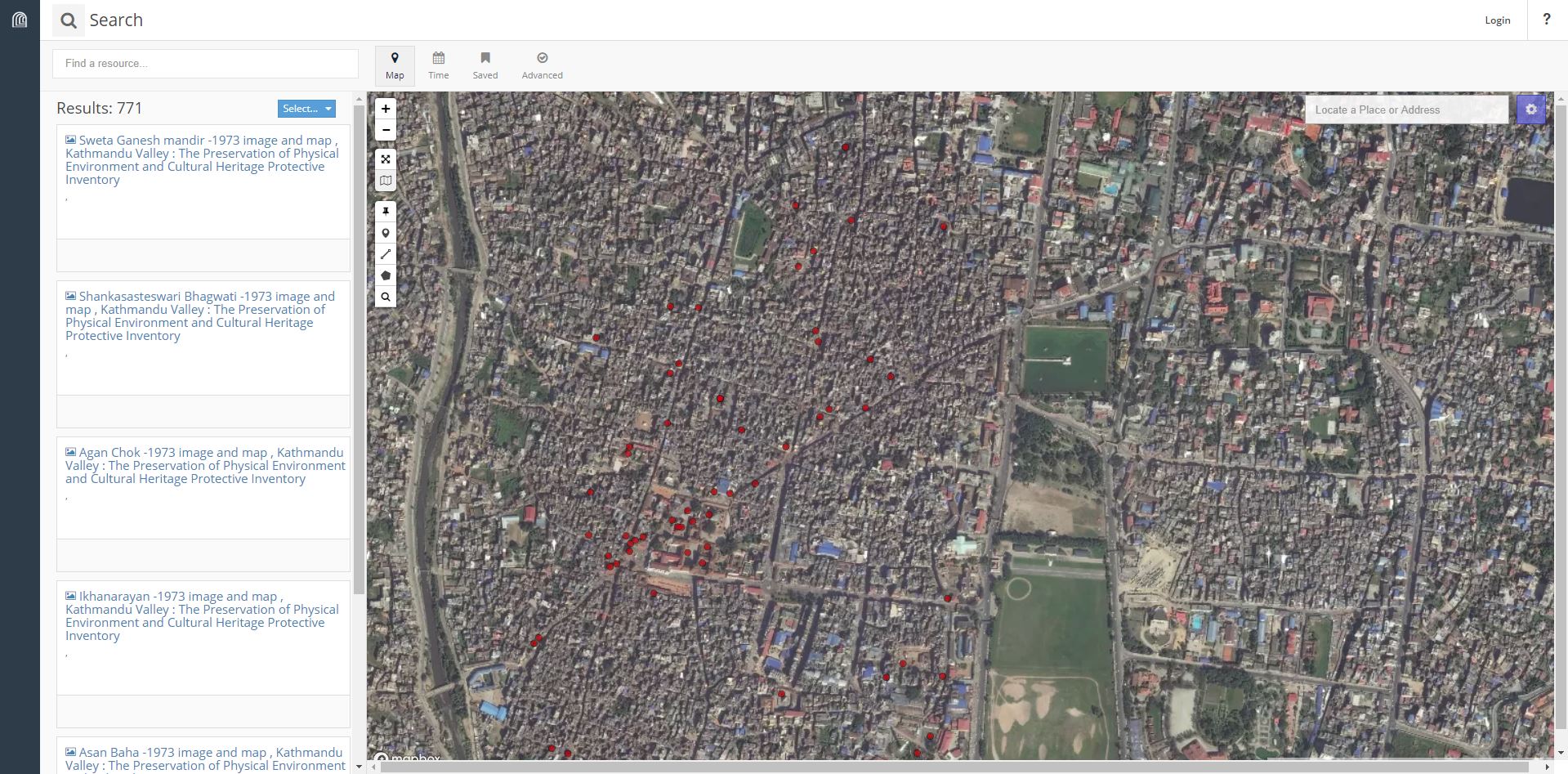
Searching within resource model
If you want to look for data owned by a particular resource model, you can search within that resource model from its search page in CHIMS.
- Click
 and choose the resource model you are interested in. CHIMS will display the
resource’s list of that particular resource model .
and choose the resource model you are interested in. CHIMS will display the
resource’s list of that particular resource model . - Type your search query in the main search box on the page
CHIMS will return search results as normal, but restricted to datasets from the organization.
Exploring reports
When you have found a dataset you are interested and selected it, CHIMS will display the dataset report page. This includes
- The name, description, and other information about the dataset
- Images, files, and brief descriptions of each of the data fields.
- Relationship to other resources.
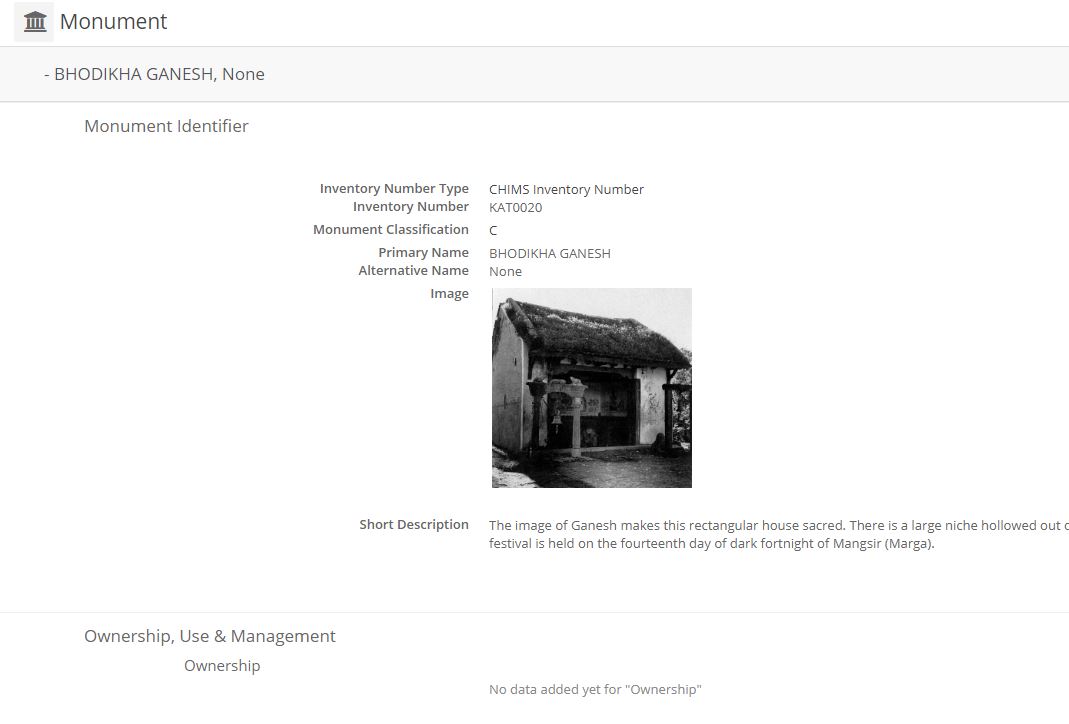
The resource descriptions link to a dedicated report page for each resource. This resource report page includes information about the resource, and enables photo or other saved files to be downloaded. Many types of resource can also be previewed directly on the resource page. The resource page will also preview resources if they are common image types, PDF, or HTML.
The report page also has other part:
- Related resources – see the list of related resources. For example, associated objects of the monument, acvities of the monument, photos/maps of the monument.
If the dataset is of interest, you can download or print it.
Logging in
Note
Logging in is needed for most recording features and for managing features, such as “editing” datasets. It is not needed to search for and download data.
To create a user ID, contact the organization. The administrator will create your user account. Once you get the username and password you can log in by clicking the log in button in the top right corner of the page.
- Username – enter the username in the box.
- Password – enter the provided password in box.
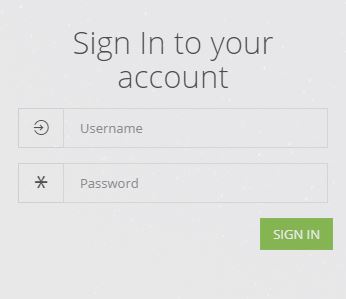
Features for users with administrator privilige
Adding a new dataset (resource)
Note
You may need to be a user of CHIMS in order to add and edit datsets. Depending on how CHIMS is set up, you may not be authorized to create new organizations. In this case, you will need to contact your site administrator.
Step 1. You can access CHIMS’s “Create Resource” screen in two ways.
- Select
 link at the top of Home page. From this, in the
Resource Manager, select the
link at the top of Home page. From this, in the
Resource Manager, select the  button of the resource model you would like to use.
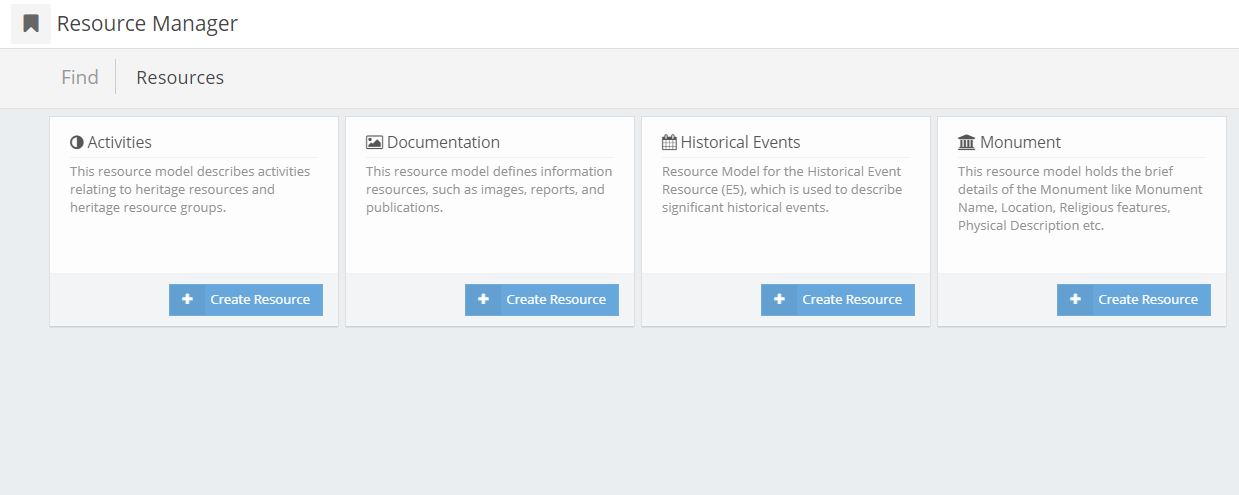
Your Resource Manager page may look different, depending on what Resource Models you have set up in your database.
- Alternatively, if you are in “EXPLORE DATABASE” or “DESIGN” page.
Select the “Add New Resource” button in the left panel of any page.
Now, select the button of the resource model you are interested in.
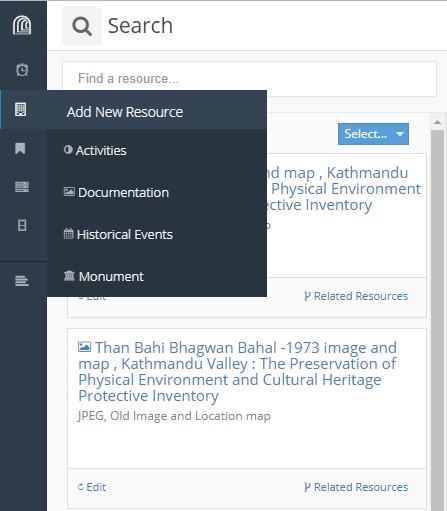
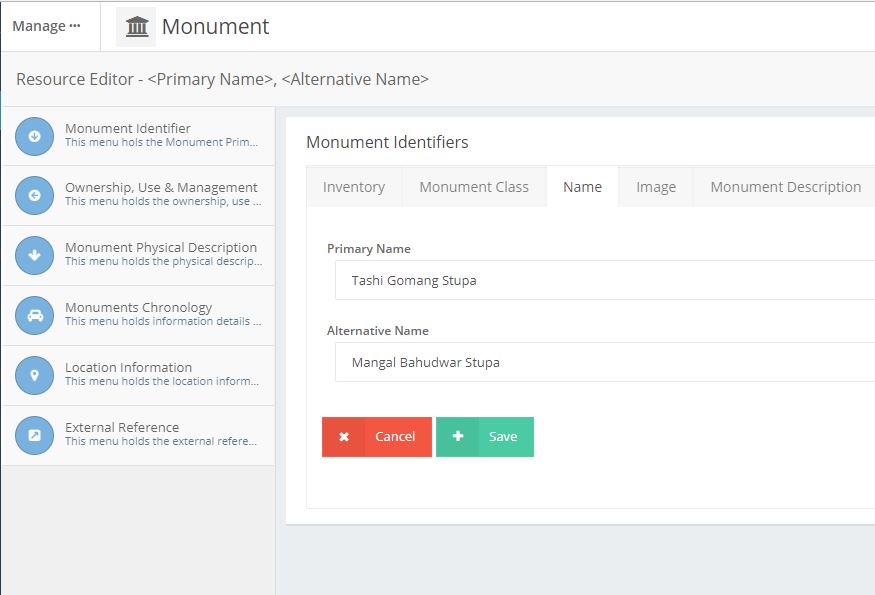
Step 2.On the left-hand side of the page you are presented with the list of Menus associated with this Resource Model, each holding one or more data-entry cards. Cards may be further divided, with tabs appearing across the top. Enter the data into required field and click on “Save” button.
Note
The procedure for entering data depends on the widget: sometimes you’ll enter text, sometimes select from a dropdown menu, or sometimes record a location by drawing geometry on a map. One thing to keep in mind generally is that certain attributes are allowed to have multiple values recorded, while some will only allow one value. You can edit or add to the other fields later.
Editing a dataset
You can edit the dataset you have created, or any dataset owned by an organization that you are a member of. (If a dataset is not owned by any organization, then any registered user can edit it.)
- Go to the page. You can find the required by entering the title in the search box .
- Select the “Edit” button, which you should see in the dataset title box.
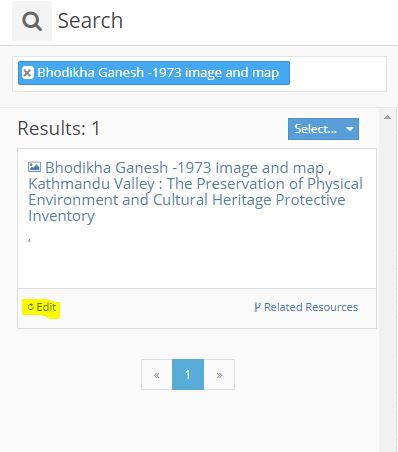
- CHIMS displays the “Resource Editor” screen. You can edit any of the fields (Title, Description, Dataset, etc), and add or delete saved images or files.
- When you have finished, select the “Save” button to save your changes.
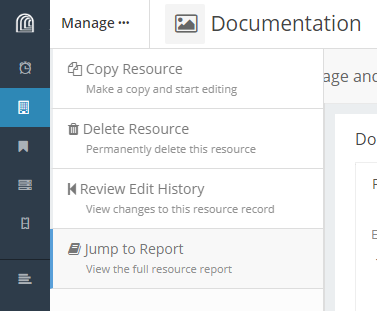
- You can check the edited data fields by clicking “Manage” and “Jump To Report” button in the top-left corner of edit page.
Deleting a dataset
- Go to the dataset’s “Edit dataset” page (see “Editing a dataset”, above).
- Select the “Manage” button and click on “Delete Resource”.
- CHIMS displays a confirmation dialog box. To complete deletion of the dataset, select “OK”.
Note
The “Deleted” dataset is completely deleted. So it does not show up in any searches, etc. If it is important to completely delete the dataset, contact your site administrator first.